# Uniflow Online : impressions de documents
**Conditions préalables** : avoir déjà suivi la procédure d'enregistrement sur Uniflow online. Si ce n’est pas encore le cas, veillez suivre au préalable la procédure d'enregistrement en cliquant sur ce lien -> [Guide démarrage pour les utilisateurs (Uniflow Online)](https://wiki.helmo.be/books/guide-dutilisation-des-outils-numeriques/page/uniflow-online-guide-demarrage-pour-les-utilisateurs "Uniflow Online : Guide démarrage pour les utilisateurs")
!!! Attention le port USB a été désactivé sur les copieurs (il n'est plus possible d'imprimer via un support USB).
Grâce à UniFLOW Online, vous pouvez à présent imprimer vos documents facilement depuis n’importe quel endroit ! (1- Via le Dashboard, 2- via Email, 3- via smartphone/tablette, 4- Via ordinateur)
#### **1- Impression depuis votre espace de travail (Dashboard)**
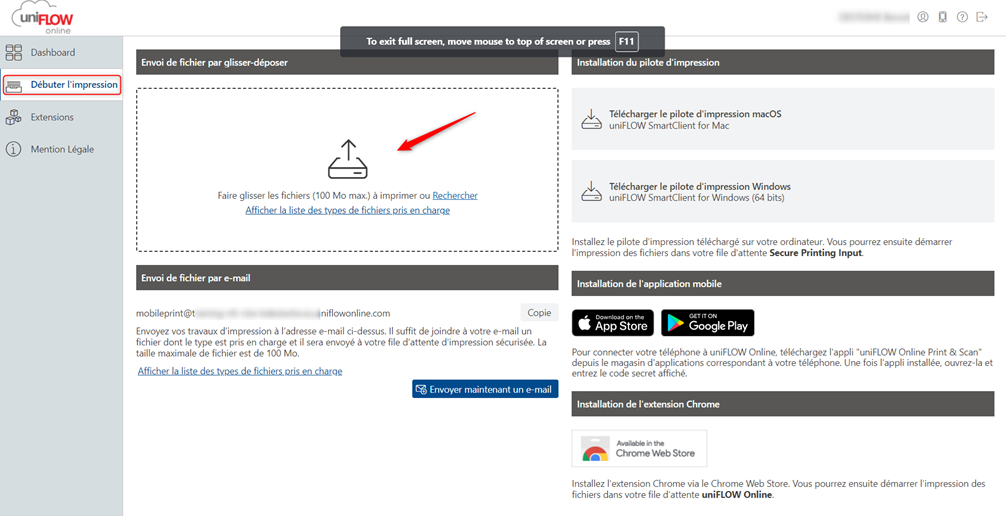
Sur la page web, cliquez sur « **Débuter l’impression** ». Vous pouvez ensuite faire « glisser déposer » ou « rechercher » les documents que vous souhaitez imprimer.
[](https://wiki.helmo.be/uploads/images/gallery/2025-06/AtCimage.png)
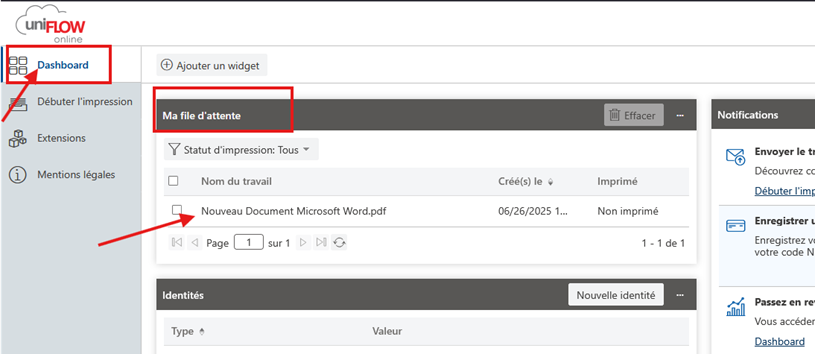
Une fois vos documents « déposés » vous pouvez les retrouver dans votre « Dashboard », en attende d’être libérés sur le photocopieur à l’aide de votre Badge/PinCode.
[](https://wiki.helmo.be/uploads/images/gallery/2025-06/y5uimage.png)
#### **2- Impression par email (Mobile Print)**
Pour imprimer vos documents, il suffit d’envoyer un Email à l’adresse avec vos documents en attachements.
Une fois vos documents envoyés, vous pourrez les retrouver dans votre « Dashboard », en attende d’être libérés sur le photocopieur à l’aide de votre Badge/PinCode.
#### **3- Impression depuis votre « Smartphone ou Tablette » **
Pour imprimer des documents depuis votre « Smartphone, Tablette », vous devez au préalable télécharger et installer l’application « UniFLOW Online Print&Scan » depuis le Play Store, ou Apple Store.
Une fois l’application installée, vous devez la lier avec votre compte via le Dashboard.
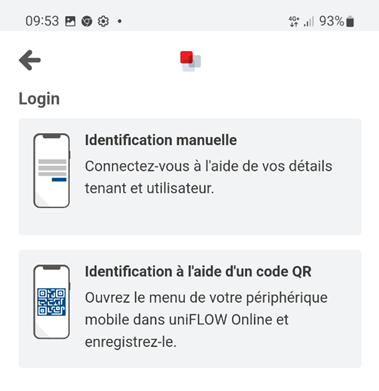
Sur votre Smartphone, ouvrez l’application « Uniflow Online Print & Scan » ensuite choisissez « Indentification à l’aide d’un QR Code »
[](https://wiki.helmo.be/uploads/images/gallery/2025-06/peLimage.png)[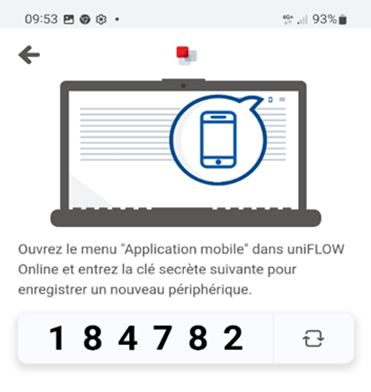](https://wiki.helmo.be/uploads/images/gallery/2025-06/PsGimage.png)
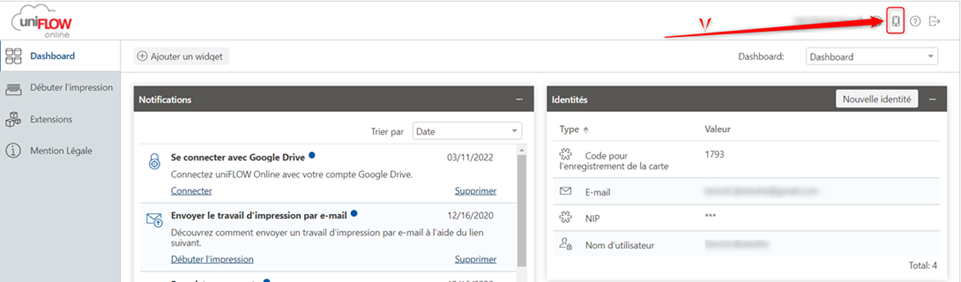
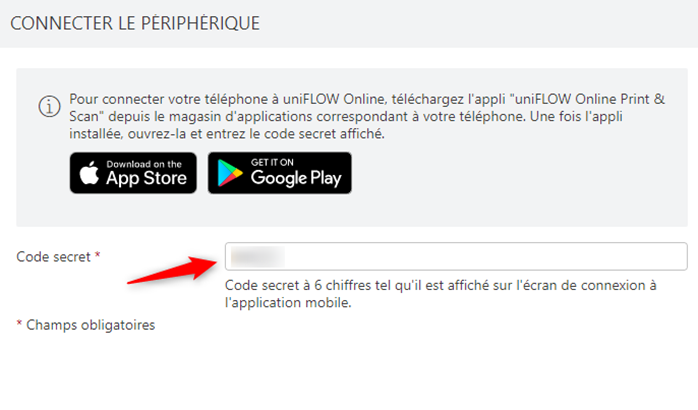
Dans votre « Dashboard », cliquez sur l’icône du smartphone et Introduisez le code de 6 chiffres
[](https://wiki.helmo.be/uploads/images/gallery/2025-06/WFvimage.png)
[](https://wiki.helmo.be/uploads/images/gallery/2025-06/3wIimage.png)
Un QR code apparait à Scanner le QR Code à l’aide de votre smartphone.
L’application est à présent liée avec « votre espace de travail »
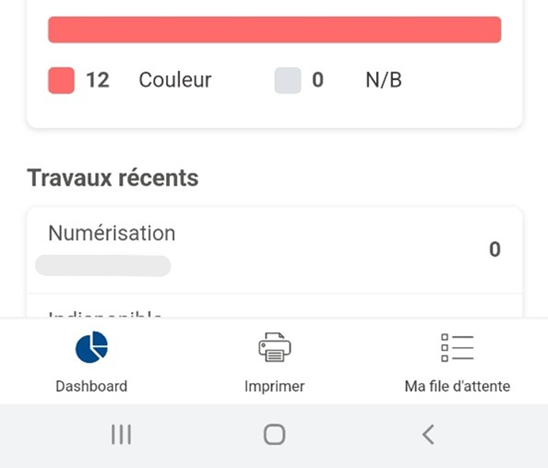
Pour imprimer un document ou une photo depuis votre smartphone, ouvrez l’application « Uniflow Online Print & Scan » sur votre smartphone, ensuite choisissez imprimer et téléchargez un fichier (ou prenez une photo)
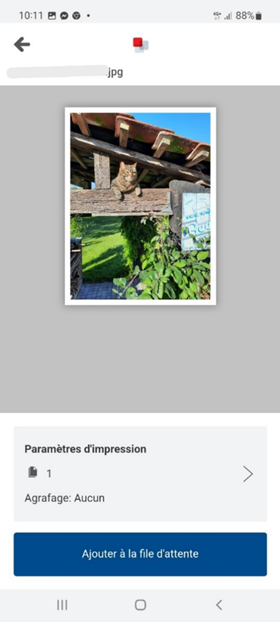
**Sélectionnez le document souhaité.**
[](https://wiki.helmo.be/uploads/images/gallery/2025-06/Mf5image.png)
Vous pouvez modifier les paramètres d’impression et ensuite ajouter le document à la file d’attente.
Une fois vos documents ajoutés, vous pourrez les retrouver dans votre « Dashboard », en attende d’être libérés sur le photocopieur à l’aide de votre Badge/PinCode.
Pour libérer votre document, sélectionnez votre document où « libérer tout » puis « libérer » votre travail.
[](https://wiki.helmo.be/uploads/images/gallery/2025-06/0UOimage.png)[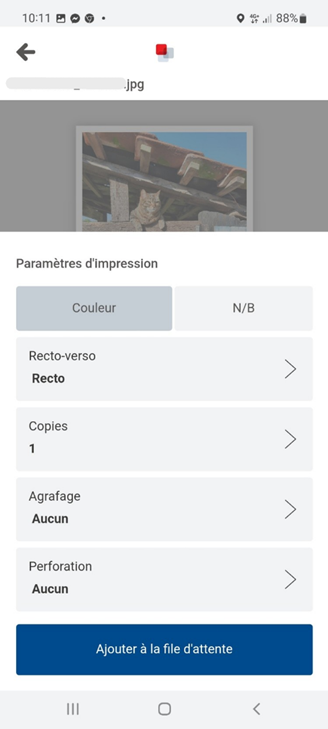](https://wiki.helmo.be/uploads/images/gallery/2025-06/YACimage.png)[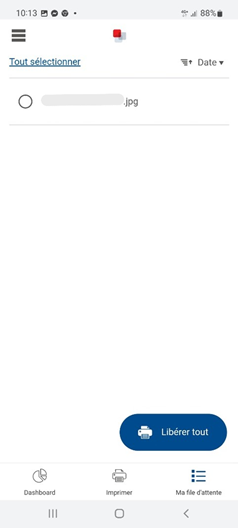](https://wiki.helmo.be/uploads/images/gallery/2025-06/i8Cimage.png)
#### **4- Impression depuis un ordinateur**
Vous pouvez également imprimer depuis votre ordinateur PC ou MAC en utilisant l’imprimante « Canon Cloud ». Pour installer cette imprimante, cliquez sur télécharger le pilote d’impression Windows / Mac.
[](https://wiki.helmo.be/uploads/images/gallery/2025-06/Hjuimage.png)
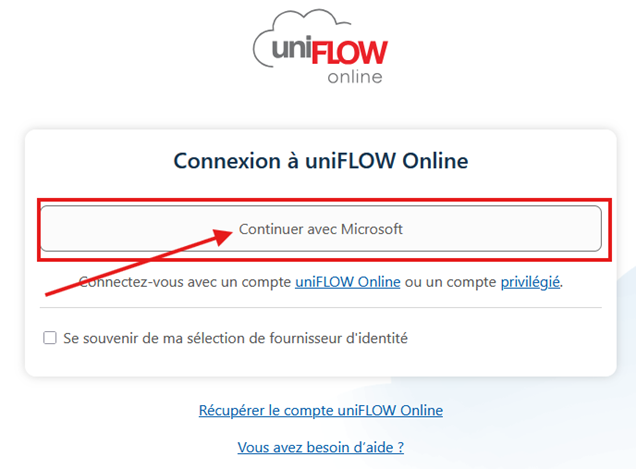
Exécutez ensuite le fichier téléchargé. Une fenêtre d’authentification apparait. (!!! Veuillez autoriser les fenêtres « pop-up » de votre navigateur internet !!!)
**Cliquer directement sur « Continuer avec Microsoft »**
[](https://wiki.helmo.be/uploads/images/gallery/2025-06/RZjimage.png)
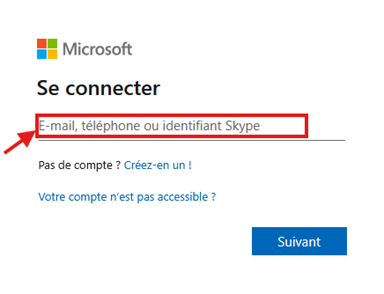
èEncoder votre adresse E-mail HELMo et par la suite votre mot de passe.
[](https://wiki.helmo.be/uploads/images/gallery/2025-06/M2wimage.png)
Un Email vous sera alors envoyé pour confirmer l’installation du pilote d’impression. Cliquez sur « Accéder à UniFLOW Online »
[](https://wiki.helmo.be/uploads/images/gallery/2025-06/hQNimage.png)
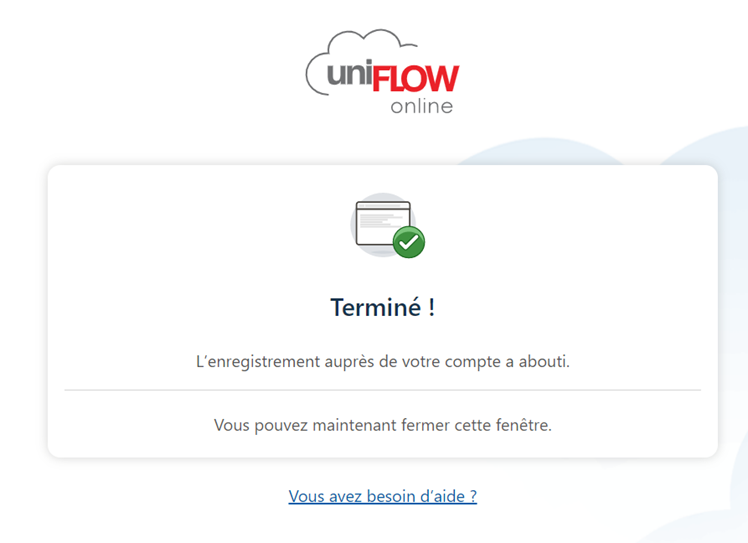
L’installation est terminée, vous pouvez utiliser l’imprimante « Canon Cloud » pour imprimer vos documents.